All articles
Getting started
Planning
Links
Guides
- UTM naming conventions for teams and agencies
- UTM parameters explained
- Campaign launch without broken links
- Planning QR codes for print
- Switch agencies without losing data
- Google Campaign URL Builder or a UTM builder for teams
- UTM links for agencies: running client campaigns cleanly
- UTM management: what it is and when a team needs it
Create a tracking link
A tracking link is the address of your landing page plus parameters that reveal where a visit comes from. The link builder assembles them according to the naming convention and checks the landing page. Admins and Editors create links, and so do agencies in their own campaigns.
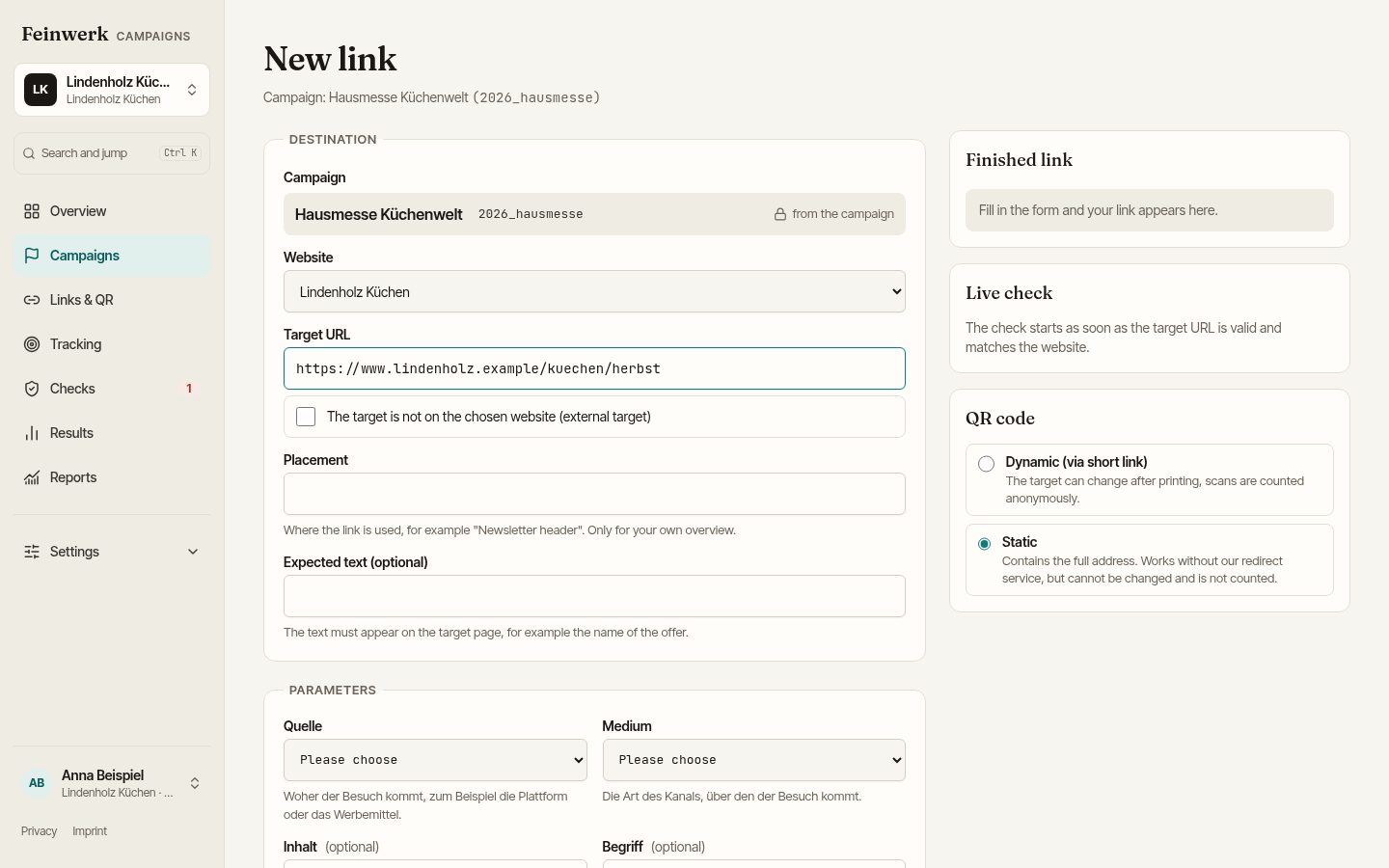
Step by step
- Open the campaign, go to the tab Links and choose New link. You can also start from the workspace home page or the command palette, where you choose the campaign first. The Links & QR page shows existing links; new ones are always created inside a campaign.
- Choose the Website of the campaign.
- Enter the Target URL, the page where the visit should land. If it is not on the chosen website, tick The target is not on the chosen website (external target).
- Under Placement, enter where the link is used, for example "Newsletter header". This is only for your own overview.
- Fill in the Parameters: choose Quelle (source) and Medium from the list; Inhalt (content) and Begriff (term) are optional. The Kampagne (campaign) comes from the campaign. In a new workspace the names of the standard fields start in German, see Set up the naming convention. Additional fields that an Admin has created appear too and go into the link as
utm_<key>. - On the right, Your tracking link shows how the address is built. Under Live check the platform shows whether the page is Reachable, whether the Parameters after the redirect arrive, whether HTTPS and certificate are fine and which tags it finds.
- Choose Create link. The link is now a Draft.
- Open the link and choose Activate link. Activating freezes the link. With Copy the tracking link you take the address.
What the platform adds
Besides your parameters, a Code is appended as utm_id. It assigns results to exactly one link, even if names differ later. Existing parameters of your target URL are kept. A # part at the end stays at the end.
Example
Target URL https://www.lindenholz.example/kuechen/herbstaktion, source newsletter, medium email, campaign 2026_herbstaktion, placement "Newsletter header". Result:
https://www.lindenholz.example/kuechen/herbstaktion?utm_source=newsletter&utm_medium=email&utm_campaign=2026_herbstaktion&utm_id=k7m2q9xd
An active link is frozen, its parameters no longer change. If you need other values, choose Create new version. The new version is a draft, and the old one ends as soon as the new one is active. With End link you end a link without a successor.
If the target URL already contains campaign parameters such as utm_source, the link builder refuses it. Use Adopt existing links for that. For addresses with #, check that the parameters survive loading.