All articles
Getting started
Planning
Links
Guides
- UTM naming conventions for teams and agencies
- UTM parameters explained
- Campaign launch without broken links
- Planning QR codes for print
- Switch agencies without losing data
- Google Campaign URL Builder or a UTM builder for teams
- UTM links for agencies: running client campaigns cleanly
- UTM management: what it is and when a team needs it
Create a campaign
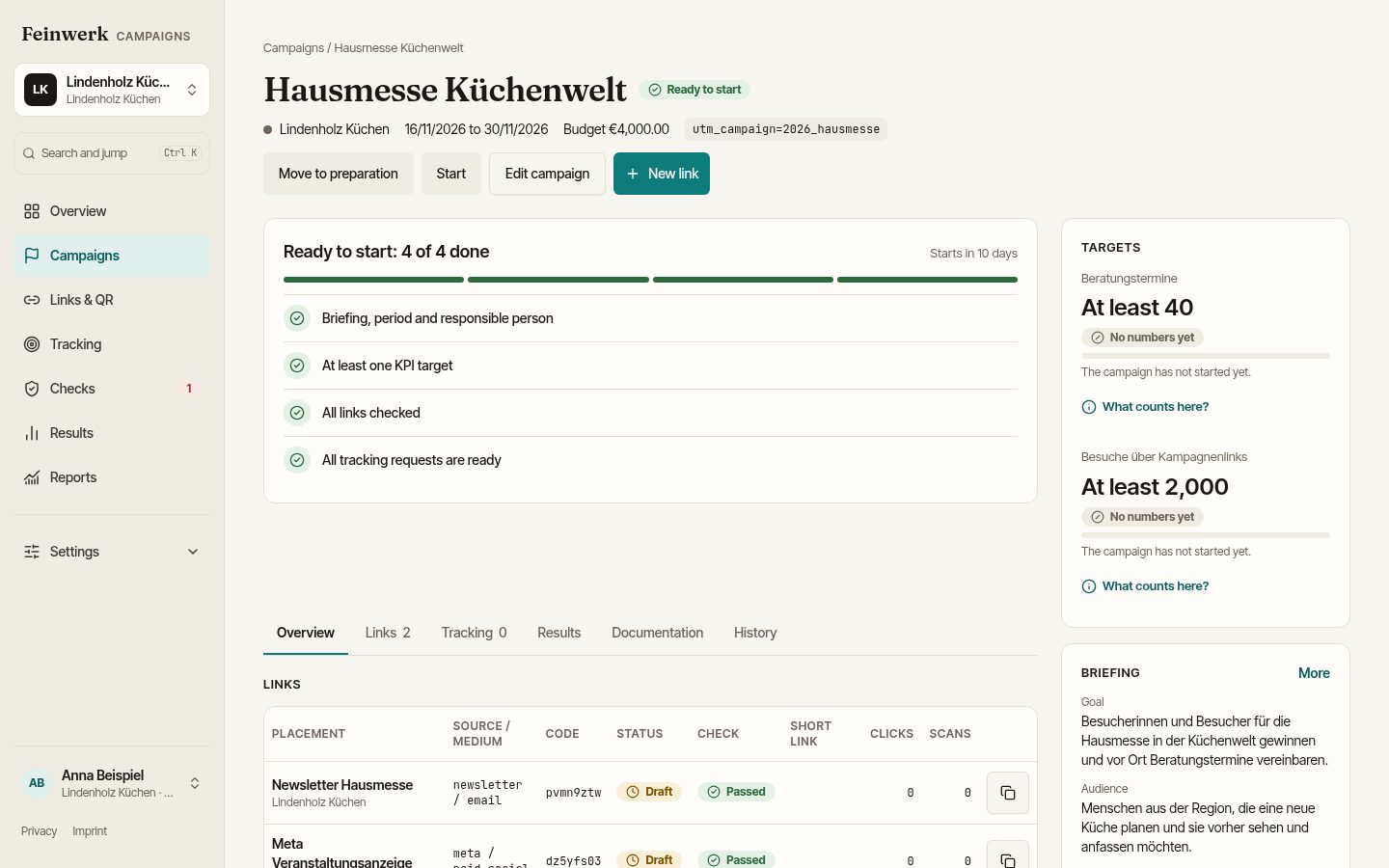
The Campaign is the central object: briefing, period, websites, channels, targets and the links all belong to it. Admins and Editors of the workspace can create one, and so can agencies with the area Campaigns. Viewers can only read.
Step by step
- Open Campaigns and choose New campaign.
- Enter the Campaign name.
- Fill in the Campaign parameter. According to the naming convention it consists of Year and Name. Under Preview of the campaign parameter you see how it appears in the link.
- Choose the Responsible organization (your company or exactly one agency) and the Responsible person.
- Set Start date, End date and Budget.
- Choose the Channels and the Websites.
- Describe the Briefing: Goal, Audience, Message.
- For Ready to start the campaign needs at least one target. You can add it now or later with Add KPI: Kind of KPI, Comparison (At least or At most), Target, Unit.
- Save with Create campaign.
When saving, only the name (with the campaign parameter) and the responsible organization are required. Period, briefing and target are needed only for Ready to start.
Status
The order is Draft, In preparation, Ready to start, Live, Paused, Ended and Archived. Only these moves are allowed, each with the button of the status, for example Move to preparation, Start, Pause, End, Archive:
- Draft: forward to In preparation.
- In preparation: back to Draft (Back to draft) or forward to Ready to start.
- Ready to start: back to In preparation or forward to Live.
- Live: only to Paused or Ended. There is no way back from Live to Ready to start.
- Paused: back to Live (Resume) or forward to Ended.
- Ended: forward to Archived.
- Archived: back to Ended.
The conditions for Ready to start are in Start checklist.
The campaign page has the tabs Overview, Links, Tracking, Results, Documentation and History. Under Documentation you find Files and Comments. On the Overview you collect links to the reports where the numbers live under Reports.
Example
Nordlicht Media creates the campaign "Herbstaktion Küchen" for Lindenholz Küchen: year 2026, name herbstaktion, parameter 2026_herbstaktion. Period 1 to 31 October, website www.lindenholz.example, channels E-Mail and Paid Social. Target: at least 200 visits through the campaign.
The Kind of KPI can be Manual KPI, Visits through the campaign, Conversions of a Matomo goal or Count of a Matomo event. The last two need entries in the tracking inventory.
From Ready to start on, the campaign parameter can no longer be changed because links contain it. Check year and name beforehand.